Terminal Cheatsheet
For macOS
For Linux & Windows
Legend
- a command:
git commit -am "Create login auth feature"
- a word, eg.:
commit
- a character, eg.:
i in commit word
Shortcuts (Ctrl)
- Ctrl + Q - Quit terminal
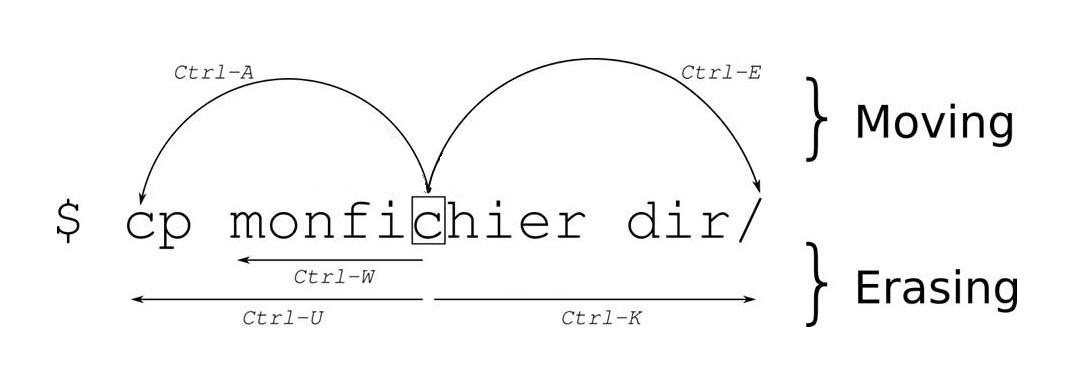
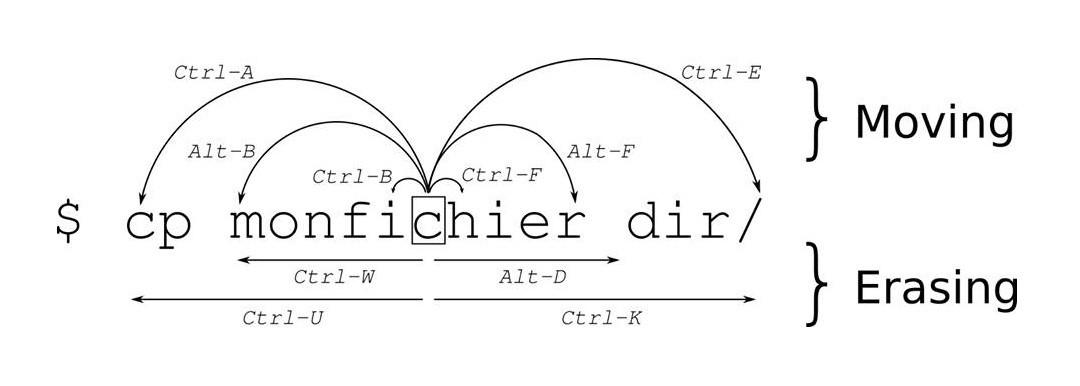
- Ctrl + W - Remove word till cursor
- Ctrl + E - Move cursor to the end of command
- Ctrl + R - Search command history (reverse-i-search)
- Ctrl + T - Reorder chars: move char under cursor to the left
- Ctrl + Y - Paste (yank) the most recently cut text
- Ctrl + U - Remove all chars: from first char, to cursor
- Ctrl + I - Tab completion (same as pressing Tab)
- Ctrl + O - Execute current command and load next from history
- Ctrl + P - Move to previous command in history (like ↑)
- Ctrl + A - Move cursor to the first character
- Ctrl + S - Pause terminal output (resume with Ctrl + Q)
- Ctrl + D - Remove character after cursor (works as Delete)
- Ctrl + F - Move cursor to the next character
- Ctrl + G - Cancel current operation / exit reverse search
- Ctrl + H - Remove character before cursor (works as Backspace)
- Ctrl + J - Run a command
- Ctrl + K - Remove all chars: from cursor, to last char
- Ctrl + L - Clear screen / terminal (only prompt will be visible)
- Ctrl + Z - Replace command to previous command
- Ctrl + X - Toggle cursor between current position and start of line
- Ctrl + C - New prompt
- Ctrl + V - Paste copied text
- Ctrl + B - Move cursor to the prev character
- Ctrl + N - Move to next command in history (like ↓)
- Ctrl + M - Run a command
Shortcuts (Option)
- Option + > - Move cursor to the next special char (eg. space @ - : /)
- Option + < - Move cursor to the prev special char